🚀 BookmarkDock Quick Start Guide
1
STEP 1: Display Settings
First, from Chrome's menu,
turn "Show Bookmarks Bar" ON.
Note: The extension works even if the bookmarks bar is hidden,
but this guide assumes it is visible.
but this guide assumes it is visible.
2
STEP 2: Home Screen Setup (Important!)
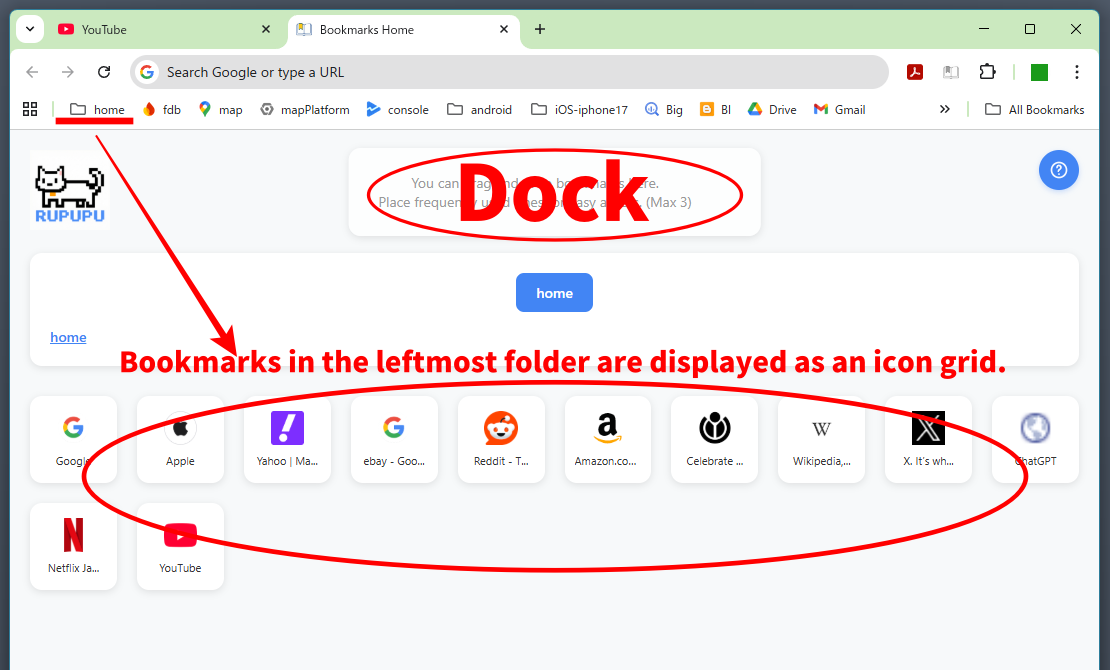
This extension automatically loads
the "folder" located at the far left of the bookmarks bar.
- Prepare a folder containing your frequently used bookmarks
(any folder name is fine) - Move that folder to
the far left end of the bookmarks bar - When you refresh the page,
📌 the bookmarks in the folder will be
displayed as icons
3
STEP 3: Using the Dock (Fixed Bar)
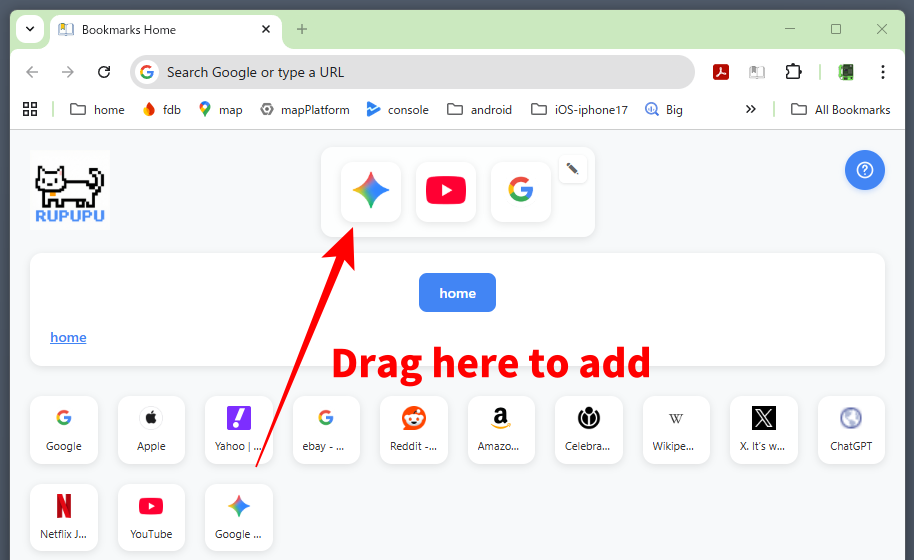
The frame at the top of the screen is the Dock.
⭐ You can pin your most frequently used sites.
- Drag and drop icons into the Dock area
- That's all it takes to register 🎉
- Open them anytime with one click
📱 Use it just like the "Dock" on your smartphone.
Software name: Bookmark Dock
• Price: Free (no in-app purchases)
• Provider: rupupu
4
STEP 4: Even More Convenient
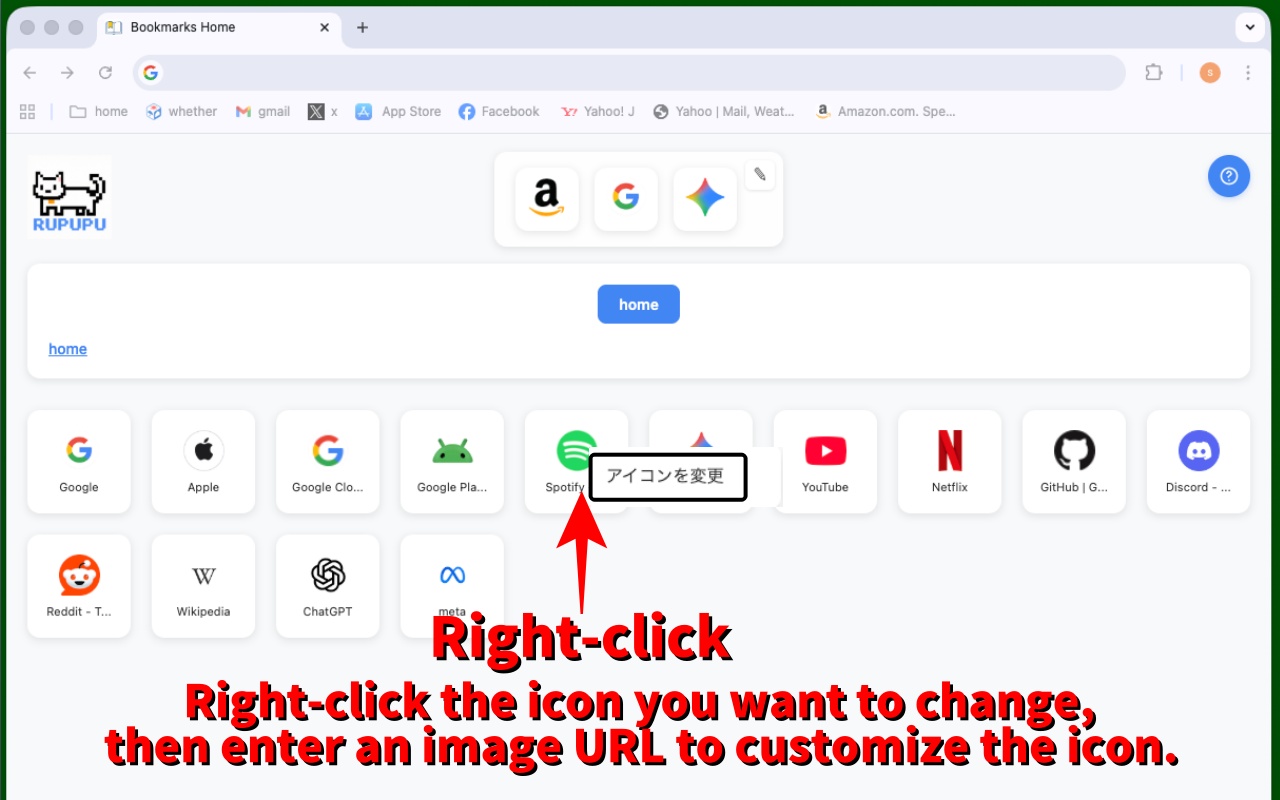
Changing the icon
Right-click the icon you want to change and register an image URL to set your preferred icon.